

How To Change Email Address In Quickbooks
There's many reasons why you might want to update the email address you use in QuickBooks Online.
Oftentimes when you first setup QuickBooks it's in the early stages of your business and you might not have a business email address yet. You may have started with a personal email address and you'd now like to switch to a business address.
I'm going to show you how to update the email address you use in QuickBooks Online.
Account and Settings
Click on the  icon in the upper right hand corner of the screen.
This opens a window with four columns. In the left hand column under the Your Company heading click on Account and Settings.
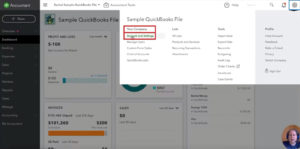
When you're in Account and Settings a new menu will appear.
Editing Contact Info
On the left hand side make sure you've selected Company.
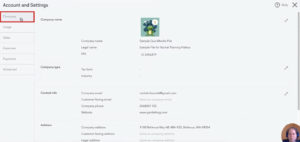
Move your mouse down to the third box, Contact Info.
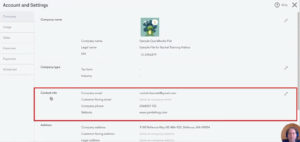
This section has a Company email line, this is what we'll be updating.
To edit this field click the pencil icon on the right hand side.
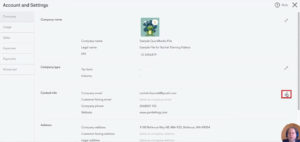
This opens an editor for the Contact info section where you can change the email address.

Below this field is a "Customer-facing email" check box. Check this box if you'd like the Company email you just entered to be the same one customer's will see on sales forms.
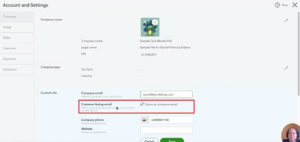
There are circumstances where you may want these email addresses to be different. For example, if your company email is the owner of the business while the customer-facing email is something like support@yourbusiness.com.
Click on the green Save button to save the email address change.
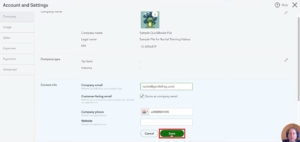
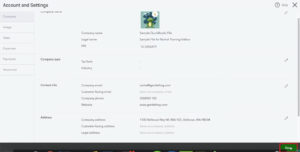
You'll now be viewing the saved Contact info and you can double check that the email address you entered is correct. If everything is good click the green Done button in the lower right hand corner.
Sending a Test Email
You can verify that the email is working correctly by sending yourself an invoice.
To do this click New in the left hand menu and select Invoice under the Customers heading.
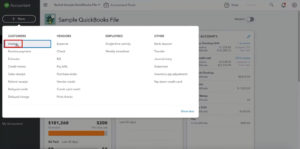
I always have a sample customer that I use for this kind of testing.
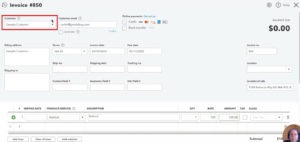
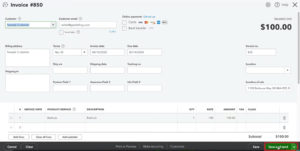
Make sure you're sending this test to yourself and then click the green Save and send button in the bottom right corner.
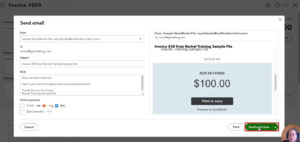
You'll see a preview of the email that you can edit. You may notice the From field will have a quickbooks email address. Don't worry, everything's correct. I'll show you where your email address appears in the email when your receive it.

Click the Send and close button.
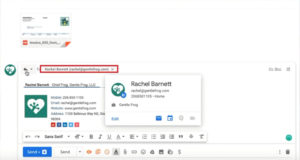
Open the invoice email when it arrives in your inbox and reply to the email.
If everything was set up correctly then the reply will be the company email address you entered in QuickBooks Online.
You now know how to update your email address in QuickBooks Online. If you'd like you can watch me walk through this process in the video below:
How To Change Email Address In Quickbooks
Source: https://www.gentlefrog.com/change-your-company-email-address-in-quickbooks-online/
Posted by: thomasponeely.blogspot.com
0 Response to "How To Change Email Address In Quickbooks"
Post a Comment